 MapsPin
How to turn on MapsPin
After installing MapsPin, turn it on in Safari and allow it on Google. It takes less than a minute.
-
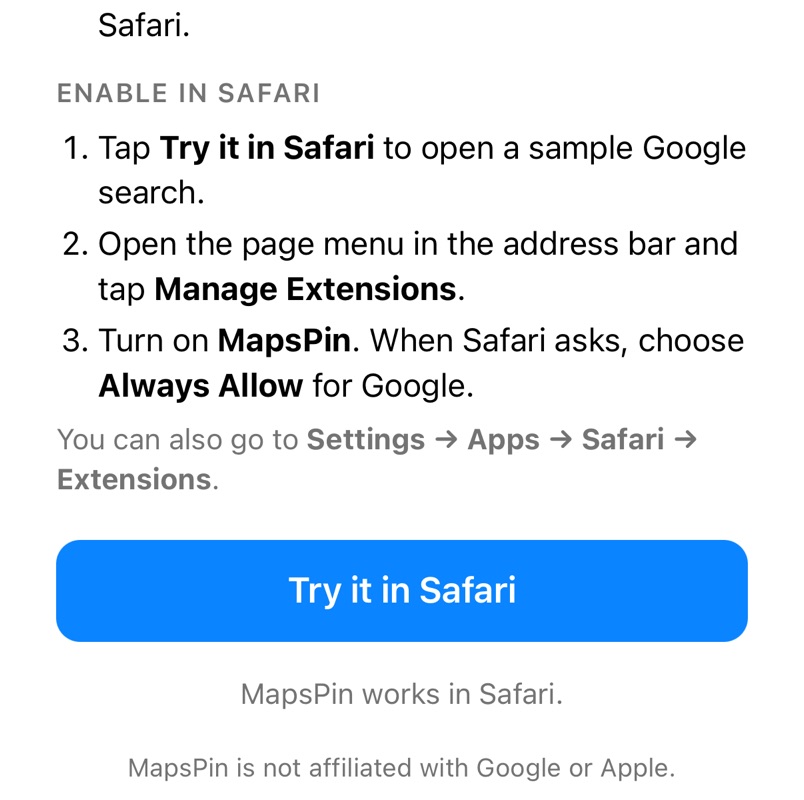
Open the MapsPin app and tap Try it in Safari.
-
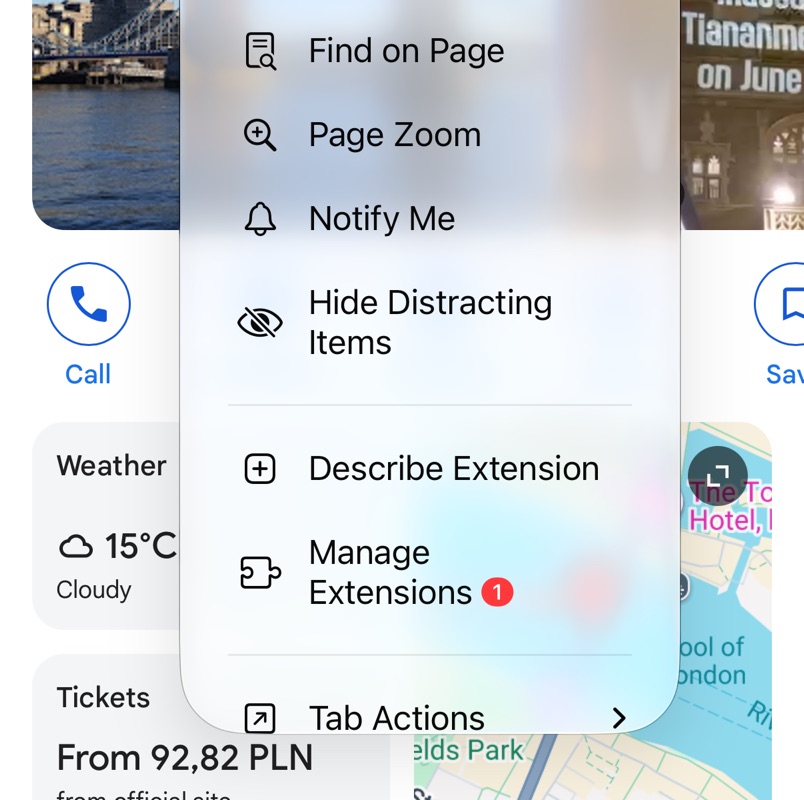
Tap in the address bar, then Manage Extensions.
-
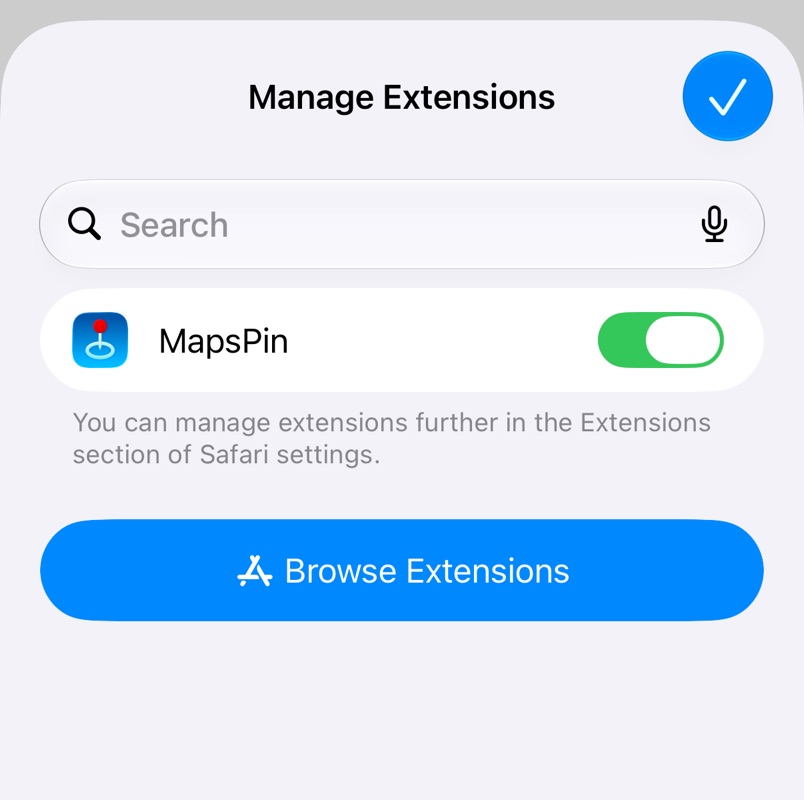
Turn on MapsPin and close the list with ✓.
-
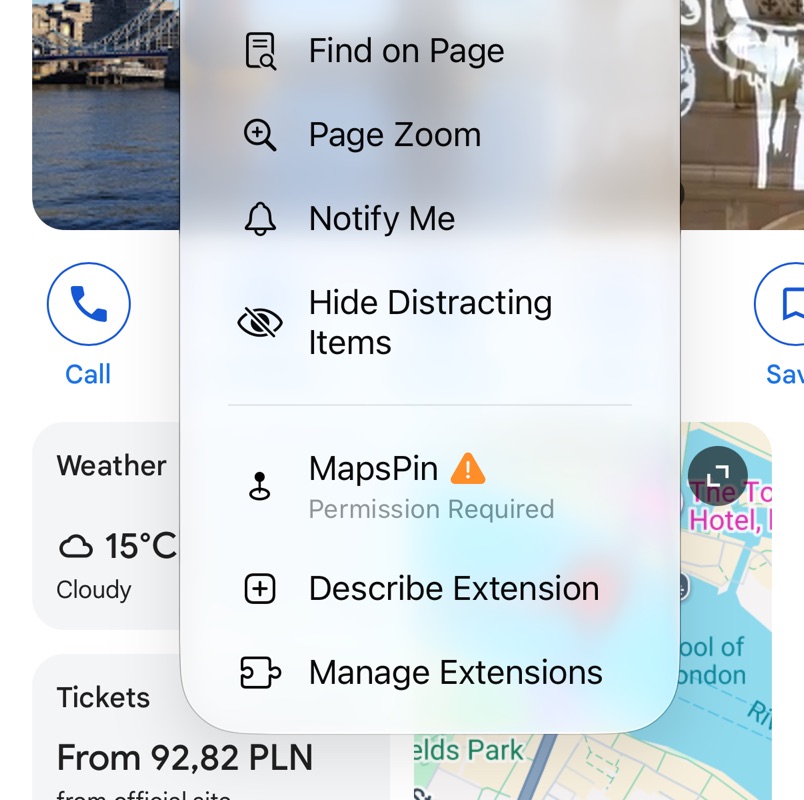
Open the menu again and tap MapsPin, marked Permission Required.
-
Choose Always Allow…, then Always Allow on This Website.
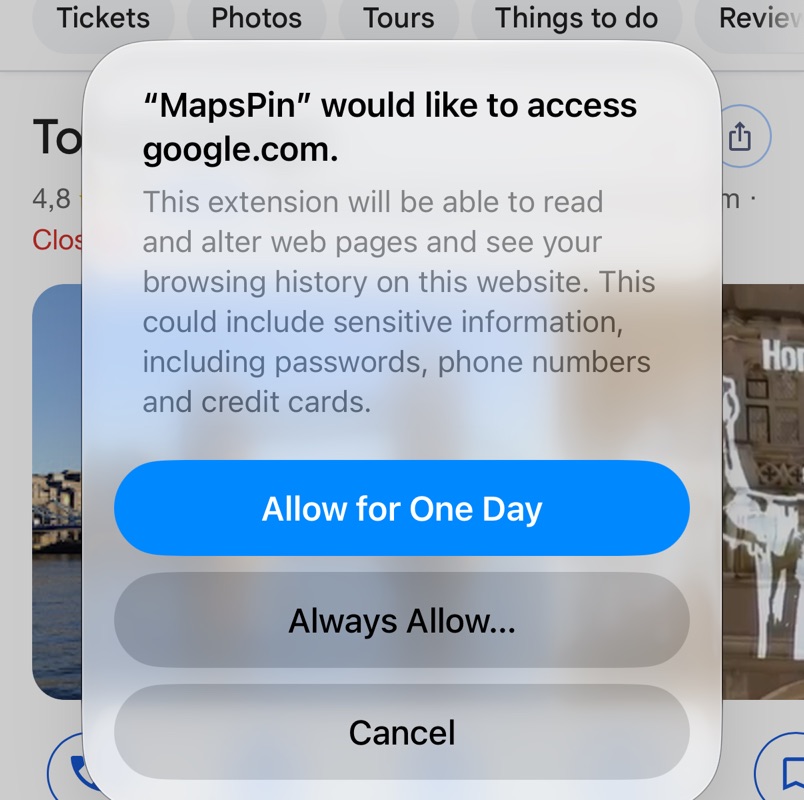
-
Done. A Google Maps tab appears next to Images.
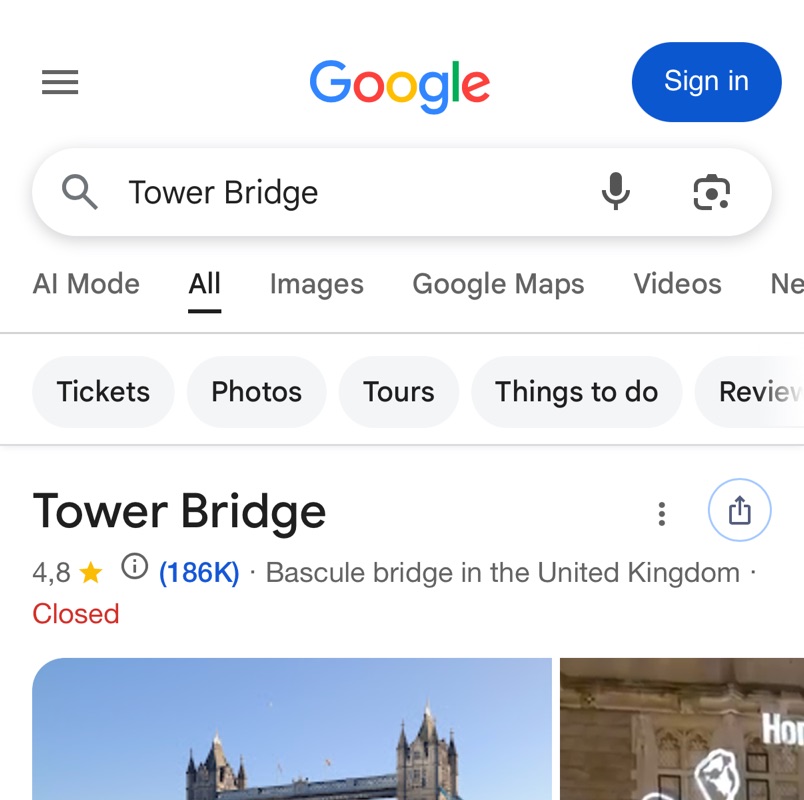
You can also go to Settings → Apps → Safari → Extensions. On iOS 17 and earlier: Settings → Safari → Extensions.
Something not working?
- No Maps tab? Reload the Google page. The tab appears when you search for places, addresses and businesses. If that doesn't help, turn MapsPin off and on again in Manage Extensions.
- Allowed for one day only? MapsPin will ask again tomorrow. To change that, open the menu, tap MapsPin and choose Always Allow….
- Also using another Google domain, like google.co.uk? Safari asks separately for each website. Repeat steps 4 and 5 there.
- Open the MapsPin app once, then open Safari → Settings → Extensions.
- Check the box next to MapsPin.
- When Safari asks, allow MapsPin on Google. Search for a place and you are done.